By Andrew Adams · Co-Founder & Lead IT Consultant and Delles Simon · Marketing Coordinator · The Link Source
The Spam Flood Was the Setup: How Attackers Use Email Bombing and Fake Teams Calls to Get In

Hundreds of subscription emails hit your inbox in minutes. Then 'IT Support' calls on Microsoft Teams to help. Here is how this real-world attack works, why spam filters miss it, and how to protect your team.
Table of Contents
- • What Happened: Anatomy of a Real Incident
- • The Attack Flow: From Inundation to Impersonation
- • Why Spam Filters Didn't Stop the Flood
- • How We Responded: 6-Phase Incident Response
- • The Hidden Risk: Malicious App Access and OAuth Consent
- • Red Flags for Employees: What to Watch For
- • How Businesses Can Protect Themselves (Admin Guide)
- • Article FAQ
It started like any other Tuesday morning at a small business we support on Microsoft 365. An employee was sorting through their morning queue when an overwhelming torrent of email notifications started flooding in. Within about 9 minutes, hundreds of emails poured into the inbox — subscription confirmations, newsletter welcomes, and account verification requests arriving every couple of seconds.
Then, amidst the confusion and frustration, a Microsoft Teams call notification popped up on the employee's screen: "IT Support is calling..."
"The spam is the distraction. The call is the attack."
Most people's natural instinct when their inbox explodes is panic. When friendly "IT help desk" support reaches out unprompted at that exact moment offering to fix the problem, it feels like a lifesaver. But the spam flood wasn't the attack — it was merely the smokescreen designed to make the employee drop their guard.
What Happened: Anatomy of a Real Incident
The incident involved a small business operating on Microsoft 365. Two employees at the company were targeted within seconds of each other. That timing is telling: the attackers weren't randomly guessing email addresses. They had acquired a targeted employee roster, likely scraped from public LinkedIn profiles or a prior third-party data breach.
The flood was intense: 300+ emails hit one user, and 250+ hit another in less than 10 minutes, originating from more than 120 different senders worldwide. While both employees scrambled to understand what was happening, one of them received an incoming Microsoft Teams call from an outside Microsoft 365 tenant posing as internal help desk support.
Fortunately, the employee noticed something felt wrong, declined to grant remote access, and immediately reported the suspicious call to us through established, verified support channels. Because of that quick reaction, no credentials were compromised and no unauthorized remote tools were launched.
The Attack Flow: From Inundation to Impersonation
This attack pattern is a textbook social engineering campaign combining email bombing with Microsoft Teams vishing (voice phishing) and help desk impersonation. The attackers follow a deliberate four-step sequence:
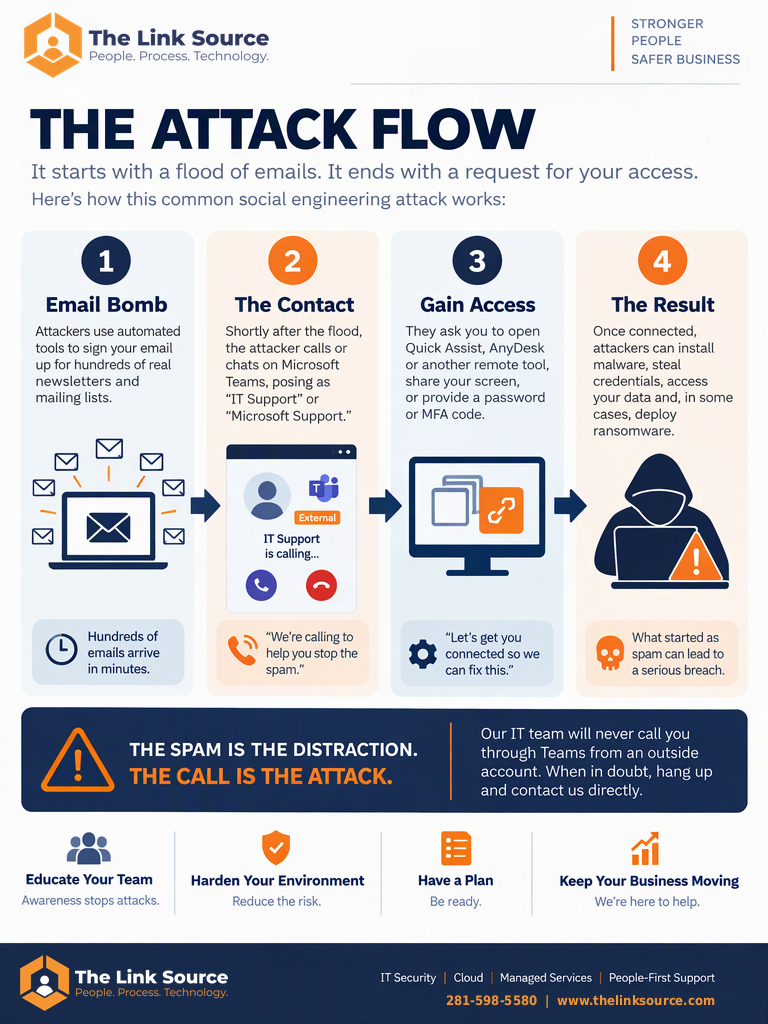
Figure 1: The 4-step attack flow — how attackers weaponize inbox noise to orchestrate remote access takeover.
- Step 1: Email Bomb (The Distraction) — Attackers unleash automated scripts that register your business email address into hundreds of legitimate web forms, newsletter signups, and service trials simultaneously. Within minutes, your inbox becomes completely unusable.
- Step 2: The Contact (The Pretext) — Shortly after the flood peaks, an attacker initiates contact via Microsoft Teams audio call or direct chat, posing as "IT Support," "Help Desk," or "Microsoft Support." They claim: "We detected an abnormal spike of malicious spam hitting your account and we're calling to stop it for you."
- Step 3: Gain Access (The Exploitation) — Under the guise of "cleaning up your mail profile" or "deploying a security filter," they instruct the victim to launch Windows Quick Assist, AnyDesk, TeamViewer, or open a malicious web link. Once connected, they ask you to authenticate or approve an MFA prompt.
- Step 4: The Result (The Compromise) — With screen control and active session tokens, attackers install persistent malware, exfiltrate confidential emails, create inbox forwarding rules, register backdoors, or pivot to deploy ransomware across the entire company network.
Why Spam Filters Didn't Stop the Flood
A natural question business owners ask is: "We pay for enterprise email security — why didn't our spam filters catch these messages?"
Here is why traditional anti-spam defenses struggle with email bombing: the emails themselves are completely legitimate. They are real confirmation messages generated by authentic marketing platforms, e-commerce stores, universities, and forums (Mailchimp, HubSpot, WordPress sites, government portals). Because:
- Every single email comes from a different IP address and domain.
- The sending servers have valid SPF, DKIM, and DMARC authentication records.
- There are no malicious links, phishing attachments, or suspicious keywords in the bodies — they are standard "Please confirm your subscription" notices.
- More than 120 unique senders delivered messages; no single domain sent enough volume to trigger automated IP throttling.
In this incident, about half got past spam filtering straight into the primary inbox, while the other half landed in Junk. Advanced filtering certainly reduces the impact, but no email gateway in the world can prevent automated subscription abuse on its own without aggressive bulk thresholds.
How We Responded: 6-Phase Incident Response
When our team at The Link Source received the incident report, we immediately executed our incident response playbook. One critical rule we follow: we always contact the affected user by verified direct phone call — never over Teams — to ensure we are speaking with the real employee and not an attacker who may have hijacked their session.
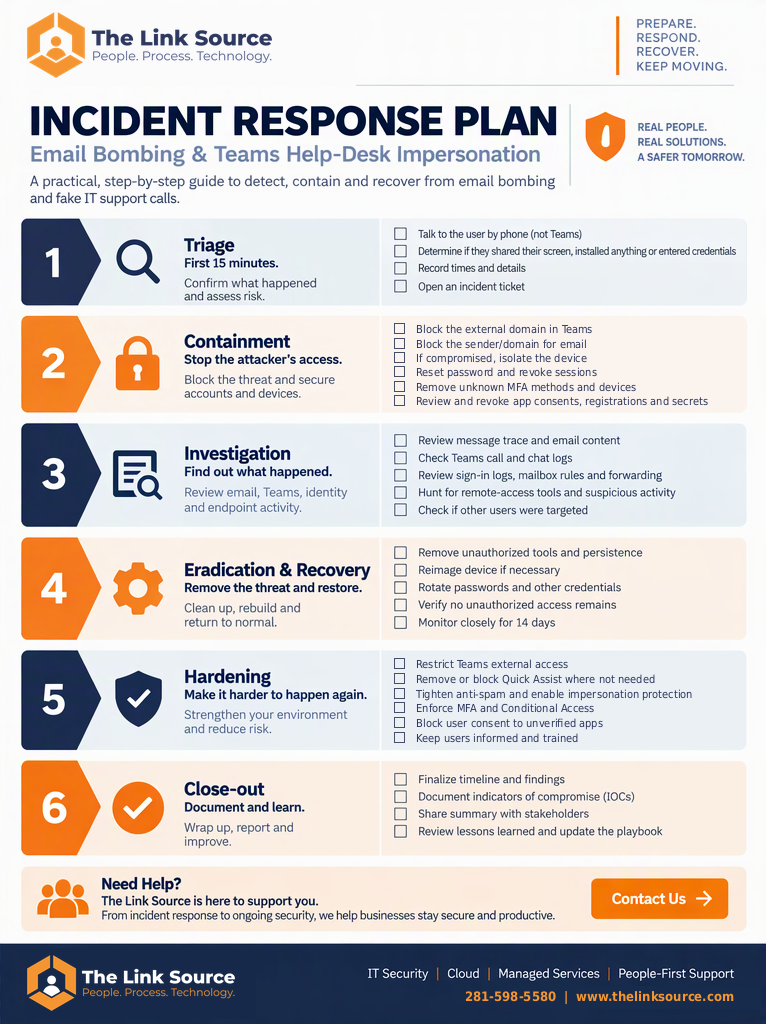
Figure 2: The Link Source's 6-Phase Incident Response Plan for help desk impersonation attacks.
Our response followed six structured phases:
- Phase 1: Triage (First 15 Minutes) — We verified the employee's current state via phone. Did they accept the call? Did they type anything into Quick Assist? Did they click any link or approve an authenticator push? We logged exact timestamps and established an isolated incident channel.
- Phase 2: Containment — We immediately blocked the calling tenant and external domain within Microsoft Teams admin center, blocked the malicious sender infrastructure, revoked all active browser sessions, and placed the account on high-monitoring status.
- Phase 3: Investigation — We analyzed Microsoft 365 unified audit logs (UAL), Entra ID sign-in telemetry, message traces, and mailbox rule configurations. We checked for hidden forwarding rules (often named "." or "Inbox rule") and queried our EDR (endpoint detection and response) agents on both employees' workstations to confirm no rogue binaries or remote control tools were executed.
- Phase 4: Eradication & Recovery — We purged the spam flood using automated Purge actions across both mailboxes, confirmed zero persistence mechanisms were planted, refreshed authentication tokens, and monitored telemetry closely for 14 days.
- Phase 5: Hardening — We restricted Microsoft Teams external communication policies, lowered the Microsoft 365 bulk complaint threshold (BCL) from 6 to 5 to catch aggressive list additions, and enforced strict application consent policies in Entra ID.
- Phase 6: Close-Out — We documented all indicators of compromise (IOCs), delivered a formal incident summary to company leadership, and used the real-world scenario as a teachable training moment for all staff.
The Hidden Risk: Malicious App Access and OAuth Consent
Many business owners assume that if an attacker manages to access an account, changing the password fixes everything. In modern cloud environments, a password reset alone is often not enough.
One of the most dangerous goals of help desk impersonators is tricking users into granting OAuth app consent or adding credentials to an existing enterprise application inside Microsoft Entra ID. If an attacker convinces an employee to click "Accept" on an innocent-looking permissions screen (like "HelpDesk Diagnostic Tool v2.1"), that cloud app receives an ongoing token.
Because OAuth tokens communicate directly with the Microsoft Graph API, that access bypasses passwords and MFA entirely. Even if you change your password ten times, the rogue cloud app can continue reading your emails, accessing OneDrive files, and sending messages as you until an administrator explicitly revokes the app's consent grant.
During any security investigation, our team systematically verifies:
- Enterprise App Consents: Any newly authorized third-party applications or permissions granted to Microsoft Graph (such as
Mail.ReadorFiles.ReadWrite.All). - App Registrations & Secrets: Any new client secrets or certificates added to custom apps that could act as permanent backdoors.
- Device Registrations: Unfamiliar devices added to Microsoft Entra ID or Intune.
- Mailbox Delegations: Hidden "Send As" or "Full Access" permissions assigned to external mailboxes.
- Role Assignments: Elevation of privilege to Global Administrator, Helpdesk Administrator, or User Administrator roles.
Red Flags for Employees: What to Watch For
Share this warning checklist with your staff during your next team meeting:
Help Desk Impersonation Red Flags
- ✕ A sudden, violent email flood: Receiving hundreds of subscription confirmations within minutes.
- ✕ An unprompted Teams call or chat from "IT": Legitimate IT teams do not monitor your personal email arrivals live and cold-call you on Teams within 3 minutes of spam arriving.
- ✕ An "External" tag on the caller: Look at the Teams badge. If it says "External" or displays an unfamiliar domain name next to the caller's handle, they do not belong to your company.
- ✕ Requests to open remote tools: Asking you to launch Quick Assist, AnyDesk, TeamViewer, or visit a remote-support URL.
- ✕ Asking for passwords or MFA numbers: Legitimate IT personnel never need your password, your SMS code, or your Authenticator number matching prompt.
- ✕ Manufactured urgency: Phrases like "We need to lock this down right now or your mailbox will be terminated!"
What to do instead: Hang up or decline the Teams call immediately. Do not share your screen, install software, or approve any login prompts. Pick up your phone and call your verified IT help desk or your dedicated Houston managed IT provider at a phone number you already know.
How Businesses Can Protect Themselves (Admin Guide)
If you manage your company's Microsoft 365 tenant or oversee your IT policies, here are the technical guardrails you should verify today:
1. Restrict Teams External Access
By default, Microsoft Teams allows external federation — meaning any external Microsoft 365 tenant can message or call your employees. In the Teams admin center under Users > External access, block unmanaged external communication or restrict federation only to approved partner domains.
2. Disable or Block Windows Quick Assist
Attackers love Quick Assist because it comes pre-installed on Windows 10 and 11 and easily bypasses casual suspicion. If your IT team uses dedicated RMM tools for remote support, uninstall Quick Assist via Intune/GPO or block its execution with AppLocker or Defender for Endpoint.
3. Tighten Anti-Spam Bulk Email Thresholds
In Exchange Online Protection (EOP) or Defender for Office 365, adjust your Bulk Complaint Level (BCL) threshold. We lowered our client's threshold from 6 down to 5, which immediately catches the vast majority of aggressive marketing list automated additions without blocking legitimate correspondence.
4. Block User Consent to Unverified Cloud Apps
In Microsoft Entra ID (Azure AD), configure User consent settings to prevent non-admin users from granting permissions to third-party applications. Enable the Admin consent workflow so legitimate app requests require administrator review and approval before tokens are issued.
5. Enforce Conditional Access and Phishing-Resistant MFA
Enforce Microsoft Entra Conditional Access policies requiring compliant, company-managed devices for cloud resource access. Where possible, upgrade employees from SMS or push-notification MFA to FIDO2 security keys or number-matching authentication.
6. Deploy Modern EDR with 24/7 Managed SOC
Traditional antivirus won't flag an employee willingly opening Quick Assist. An EDR (endpoint detection and response) platform backed by a 24/7 Security Operations Center (SOC) monitors process lineage, unusual child processes, and unauthorized remote access binaries in real time.
Have a Playbook Ready Before It Happens
When an employee contacts you during an email flood, the golden triage question is: "Did you give anyone remote access, enter your credentials, or approve any authenticator prompts?"
If the answer is no, your workflow is containment, spam purge, and hardening. If the answer is yes, you are in full incident response: isolate the machine, revoke tokens, inspect cloud audit logs, and hunt for persistence. You can download and save our Incident Response Plan graphic to keep with your disaster recovery documentation.
Conclusion: Awareness Stops What Firewalls Cannot
Technology defenses are vital, but social engineers will always try to manipulate human emotions — creating chaos with hundreds of emails and immediately offering a comforting, false hand to solve it. In this incident, educated employee awareness saved the business from what could have been a catastrophic data breach.
By locking down external Teams access, restricting application consent, and establishing a clear culture where employees verify IT support before granting screen control, your business can render these sophisticated attacks harmless.
Not Sure if Your Microsoft 365 and Teams Settings Leave You Exposed?
The Link Source can review your cloud configuration, including Teams external access policies, app consent controls, and advanced email protection. Get peace of mind with a comprehensive security audit.
The Link Source · Northwest Houston, TX · thelinksource.com
Article FAQ
What is email bombing?
Email bombing (also known as subscription bombing or a spam flood) is a cyberattack where automated scripts sign a victim's email address up for hundreds or thousands of legitimate newsletters, forums, and online services within minutes. Attackers use it as a smokescreen to overwhelm your inbox, distract you, or conceal unauthorized financial transactions and security alerts.
Will Microsoft or my company IT ever call me on Teams out of the blue?
No. Neither Microsoft nor any reputable IT support team will cold-call you through Microsoft Teams from an outside account to fix an unsolicited issue. Genuine IT teams communicate through verified internal tickets, pre-scheduled support sessions, or direct telephone calls from known company numbers. Any Teams caller displaying an "External" badge claiming to be help desk is an impersonator.
Is a password reset enough after a user clicks or grants access?
No. If the attacker convinced the user to accept an OAuth cloud application consent prompt, register a rogue device, or add a secret to an existing enterprise app in Microsoft Entra ID, the attacker retains persistent cloud access through API tokens. Those tokens bypass passwords and multi-factor authentication (MFA). A complete investigation must inspect app consents, mailbox forwarding rules, and active session tokens.