
By Delles Simon · Marketing Coordinator · The Link Source
How to Use Microsoft Intune to Manage Remote Devices

Microsoft Intune is Microsoft's cloud-based tool for managing and securing company laptops, phones and apps. Learn how enrollment, compliance policies and the Company Portal work for remote teams.
Table of Contents
- What is Microsoft Intune?
- How Does Microsoft Intune Work?
- How to Use Microsoft Intune
- What is Microsoft Intune Used For?
- Microsoft Intune Company Portal
- Microsoft Intune Admin Center (Azure Intune Portal)
- Intune vs. Entra ID
- Microsoft Intune Management
- Benefits of Intune
- Getting Started with Microsoft Intune
- How The Link Source Can Help You
- Article FAQ
What is Microsoft Intune?
Microsoft Intune is Microsoft's tool for managing and securing a company's laptops, phones and the apps on them. It is a cloud-based endpoint management service that secures and manages your organization's devices and apps. IT teams can use it to enroll, configure, secure, and update devices, deploy and protect apps, and control which users and devices can access organization resources.
Intune is a strong option for managing remote Windows systems, especially if your company relies on Microsoft cloud products.
As hybrid and remote work becomes common, managers and IT administrators face the challenge of managing multiple devices across different locations while keeping organizational data secure. These tasks are less troublesome with Microsoft Intune.
Intune allows organizations to maintain visibility of who has access to what resources, ensuring security when devices and data are spread across multiple locations. Any device can be managed under one unified network, making IT management straightforward and secure.
Microsoft Intune is a cloud-based endpoint management solution designed to help organizations manage devices, applications, and user access for better endpoint security. Intune is part of Microsoft Enterprise Mobility + Security (EMS). It lets IT staff control both company and personal devices. This ensures security rules are followed on many platforms. Intune supports Windows, macOS, iOS, and Android devices, making it versatile for organizations with diverse device environments.
Intune enables organizations to protect data, enforce security policies, and provide secure access to company resources, regardless of where employees are working. Intune offers tools to manage apps, settings, and security on any device. It protects employee privacy whether the device is company-owned or personal.
How Does Microsoft Intune Work?
Intune works by connecting devices, users, and applications to the cloud-based management platform. Once devices are enrolled, administrators can configure policies and monitor device activity with the Intune portal. Intune can enforce encryption, password requirements, VPN configurations, and app usage restrictions, to safeguard company data.
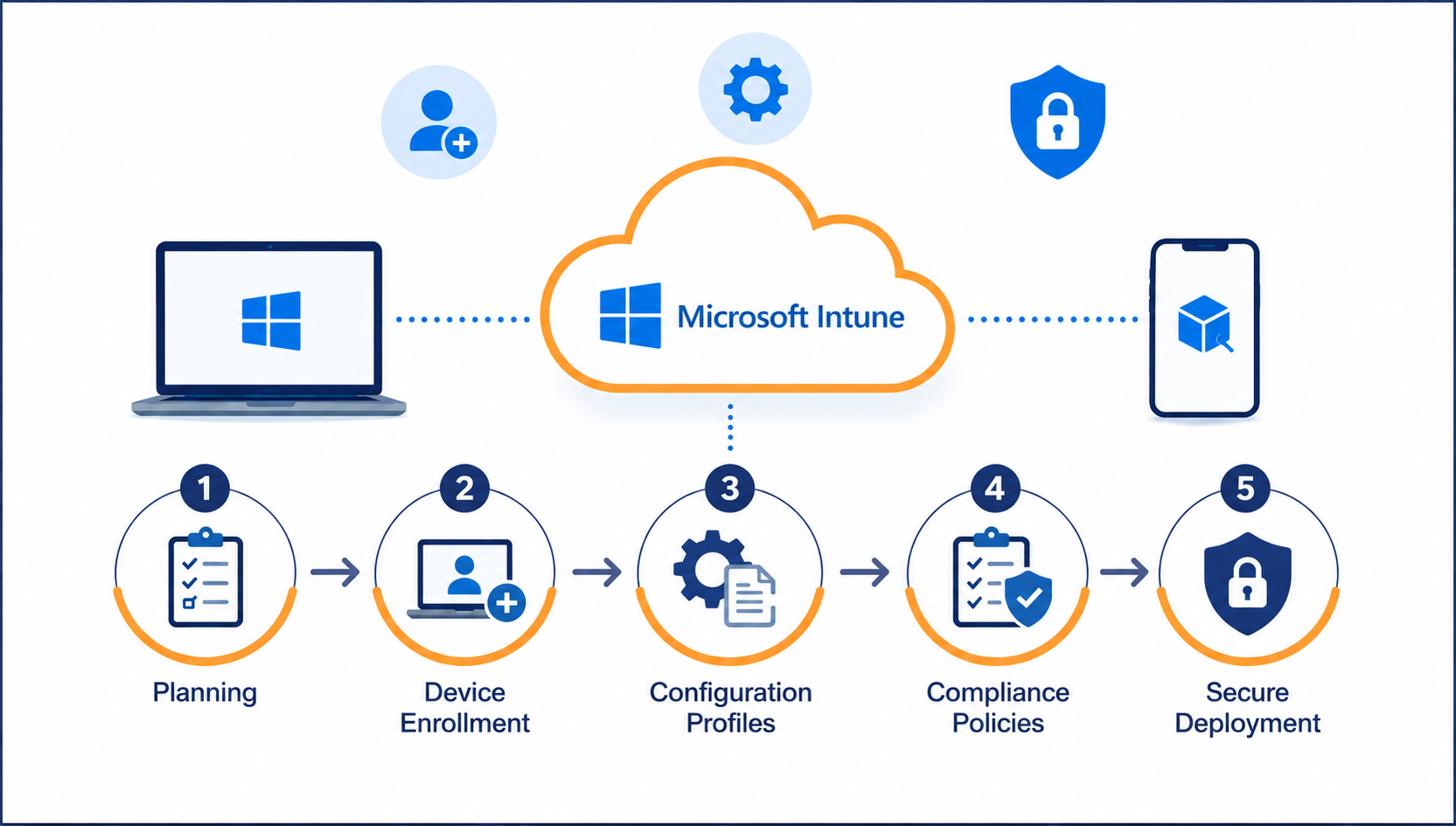
How Microsoft Intune connects cloud policies, enrollment, and security compliance to manage endpoints.
A key aspect of Intune is its integration with Azure Active Directory, now Microsoft Entra ID. By connecting devices and users through Entra ID, administrators can control access to company resources based on user identity, device health, and location. This integration ensures that only compliant and verified devices can access sensitive information, providing a layer of security that is flexible and strong.
Intune also includes a platform called Windows Autopilot. This tool allows your company to provide images to devices at the time of ordering. Companies can order a device, enroll that device into the platform with the pre-approved image and applications, and ship it directly to its users. This takes away from the traditional model where devices need to be shipped to IT first and then sent to the users. It makes it easier for large companies or companies with a large remote staff or many locations to have a scalable, repeatable deployment process.
How to Use Microsoft Intune
Using Microsoft Intune begins with enrolling devices into the Intune environment. Users can enroll personal devices manually or automatically using Apple Automated Device Enrollment (ADE). Companies can enroll their devices using Windows Autopilot. Once devices are enrolled, administrators can:
- Manage updates and patches.
- Monitor device health and usage.
- Deploy applications to groups or individual users.
- Set compliance policies to define device security requirements.
- Restrict access to company resources on non-compliant devices.
For employees, using Intune is not that hard. After enrolling their devices, they may access company apps, resources, and emails, with secure configurations applied.
What is Microsoft Intune Used For?
Microsoft Intune is used to protect corporate data, manage devices, and maintain security compliance across an organization. Use cases include:
- Deploying applications and updates.
- Managing corporate-owned and personal devices.
- Enforcing device encryption and password policies.
- Remotely wiping lost or stolen devices without affecting personal data.
- Restricting access to resources based on compliance and security criteria.
Intune's flexibility helps your organization choose the level of control appropriate for your environment.
Microsoft Intune Company Portal
The Intune Company Portal allows employees to self-manage certain device functions while remaining compliant with corporate policies. Features include:
- Compliance notifications.
- App deployment and updates.
- Access to corporate resources.
- Device enrollment and configuration.
The Company Portal ensures that employees have easy access to everything they need, while allowing IT administrators to maintain oversight of device compliance and security. The portal is a bridge between organizational IT management and employee usability.
Microsoft Intune Admin Center (Azure Intune Portal)
The Microsoft Intune admin center (formerly known as Azure Intune Portal) is where administrators manage devices, users, and applications. Through this portal, IT teams:
- Assign apps to users or groups.
- Track device inventory and health.
- Configure device compliance policies.
- Automate responses to non-compliant devices.
- Integrate with other Microsoft services like Entra ID, Microsoft 365, and security tools.
The portal provides a centralized dashboard and remote management tools for managing all endpoints, which is valuable in hybrid or remote work environments where devices may not be physically present in the office.
Intune vs. Entra ID
While Intune focuses on managing and securing devices and apps, Entra ID (formerly Azure Active Directory) manages user identities and sign-ins. Intune shares each device's compliance status with Entra ID, which uses it to allow or block access to company resources.
Think of it like this: Entra ID verifies who is signing in. Intune verifies that the device they're using is secure.
Microsoft Intune Management
Intune management involves:
- Distributing company-approved apps efficiently.
- Configuring compliance requirements for devices.
- Remotely wiping or locking lost or compromised devices.
- Enrolling both company-owned and personal devices to Intune.
- Monitoring and tracking device compliance, updates, and security incidents.
Administrators can use Intune's automation to streamline management tasks, saving time and reducing the security risk of human error.
Benefits of Intune
Microsoft Intune provides a range of benefits and security features for organizations, including:
- Flexibility support of multiple platforms and device types.
- Remote access that allows employees to work securely from anywhere.
- Centralized IT management that reduces complexity and improves for IT teams.
- Enhanced endpoint security that protects company data on both corporate and personal devices.
- Compliance enforcement, to ensure that devices meet company policies before accessing resources.
- Integration standards that allow Intune to work with Microsoft 365 and third-party applications.
These benefits reduce the administrative burden on your IT team while maintaining a secure and compliant working environment.
Getting Started with Microsoft Intune
To get started with Microsoft Intune:
- Sign in to the Azure Intune Portal admin center.
- Enroll mobile devices; this can be done manually by users or automatically via corporate deployment programs through remote access.
- Configure device compliance policies regarding password requirements, encryption, and update policies.
- Deploy applications through the portal to specific users or device groups.
- Monitor device compliance and health using dashboards and reporting tools.
- Take action as needed; remotely wipe or lock devices that are lost, stolen, or non-compliant.
With these steps, your organization can manage mobile devices, protect data, and ensure that employees can work securely from any location.
Microsoft Intune Suite provides a comprehensive solution for managing devices and safeguarding company data. Intune works on many platforms. It uses cloud technology and connects with Microsoft Entra ID. These features make Intune useful for modern IT management.
Companies use Intune Suite to keep access secure and enforce rules. It also makes device management simpler. This helps IT staff and employees focus on work instead of mobile device management and data problems. Microsoft Intune provides the unified endpoint management needed to keep your devices, applications, and data secure, no matter where your workforce operates from.
How The Link Source Can Help You
Getting Intune set up correctly takes planning. Keeping it effective takes ongoing attention. As a local Houston managed IT provider, The Link Source handles both, so your team doesn't have to. Many businesses pay for Intune through their Microsoft 365 plan but have never turned it on. We can help you put it to work and fit it into your IT strategy that includes cybersecurity and backup and disaster recovery. Call us at 281-598-5580 or book a free strategy session with our team today.
Article FAQ
What is Microsoft Intune used for?
Microsoft Intune is used to manage and secure company devices — including laptops, phones and tablets — from a single cloud-based platform. IT teams use it to enroll devices, enforce security policies, deploy applications, monitor compliance and remotely wipe lost or stolen devices. It works across Windows, macOS, iOS and Android.
Can Intune manage personal devices without affecting personal data?
Yes. Intune supports bring-your-own-device (BYOD) scenarios by separating corporate data from personal data on the same device. Administrators can enforce security policies on company apps and email without seeing or touching personal photos, messages or browsing history. If a device is lost or an employee leaves, remote wipe removes only the corporate data.
Do I need Microsoft Intune if I already have Microsoft 365?
Many Microsoft 365 plans include Intune licenses, but having the license and using the tool are different things. If your team works remotely, uses personal devices for company work, or needs consistent security policies across multiple locations, Intune gives you centralized control. Many businesses pay for it without ever turning it on.
How does Intune work with Microsoft Entra ID?
Intune and Entra ID work together but serve different purposes. Entra ID (formerly Azure Active Directory) verifies who is signing in and manages user identities and access. Intune verifies that the device they're signing in from is secure and compliant. Entra ID uses Intune's compliance status to allow or block access to company resources.